Manual: Remote Login
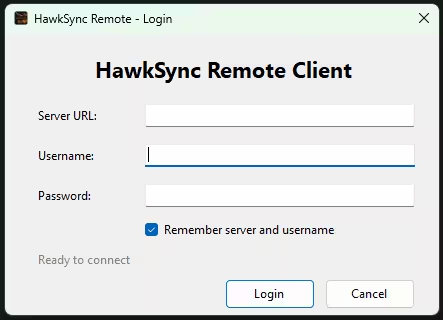
The Login Form is the first screen you see when launching the Remote Client. It connects you to the Server Manager and authenticates your identity.
How to Log In
Step 1: Enter Server Details
On the login screen, fill in the following fields:
| Field | Description |
|---|---|
| Server URL | The address of the Server Manager (e.g., http://localhost:5000). |
| Username | Your admin username. |
| Password | Your admin password. |
Step 2: Click Login
Click the Login button to connect to the server.
Step 3: Handle Responses
The login form will respond in one of several ways:
Successful Login
- Status shows "Login successful!" in green.
- The main Remote Client window opens.
- Your settings are saved (if "Remember" checkbox is checked).
Version Mismatch
- A dialog appears explaining the version mismatch.
- You may be prompted to update the Remote Client.
- The HawkSync Updater launches automatically.
Failed Login
- Status shows "Login failed" in red.
- An error message displays the reason.
- Your password field is cleared.
Rate Limited
- Status shows "Rate limited. Try again in Xs".
- Login button is temporarily disabled.
- Wait for the countdown to finish.
Remember Me
The "Remember my server" checkbox saves your:
- Server URL
- Username
These are stored in: %APPDATA%\HawkSync\client-settings.txt
Password is never saved.
Troubleshooting
"Failed to connect to server"
Cause: Cannot reach the Server Manager
Solution:
- Verify the Server Manager is running.
- Check the server URL is correct.
- Check firewall settings.
"Version mismatch"
Cause: Client and server versions differ
Solution:
- Click "Update" in the dialog that appears.
- Or manually run HawkSyncUpdater.exe.
Rate Limited
Cause: Too many failed login attempts
Solution:
- Wait for the cooldown period.
- Ensure credentials are correct before retrying.
Version Information
The Remote Client reads its version from version.json in the application folder.
The version is sent to the server during login for validation. If versions do not match, the server may block the connection.
Code Reference
See RemoteClient/Forms/LoginForm.cs for the full implementation.